Manage Recipients
In the OLB app, the list of beneficiaries inside the Make Payment module, is displayed using the Beneficiary Management component. This component displays the list of beneficiaries based on the beneficiary type such as P2P, Business, and International.
Use the feature to manage your recipients - all accounts in other banks (external accounts).
Menu path: Online Banking > Transfers > Manage Recipients
The app displays the list of recipients previously added.
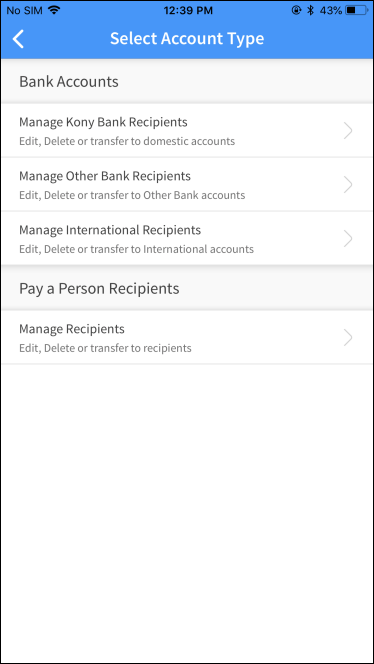
Menu path: Mobile Banking > Hamburger Menu > Manage Recipients > tap any recipient account under Bank Accounts
The app displays the list of recipients previously added.
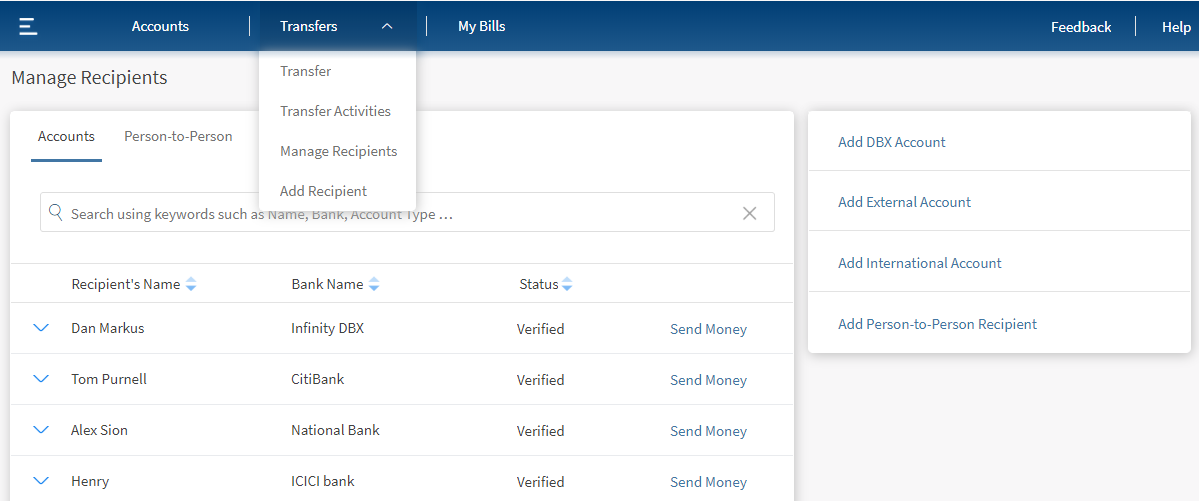
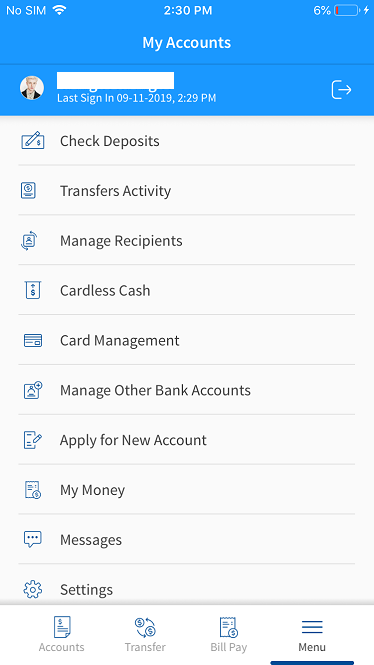
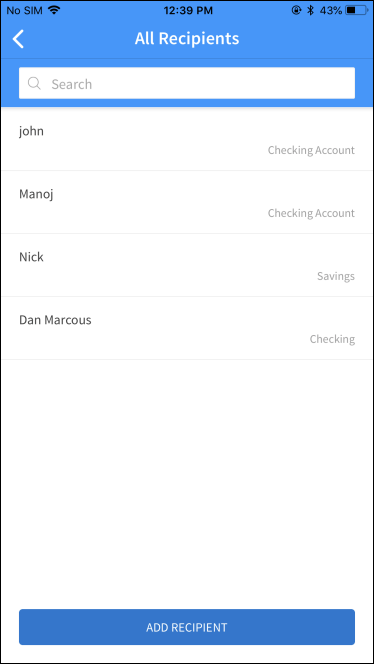
The manage recipients screen has two tabs:
- Accounts: Displays the list of accounts that are added to the database. The list includes
- Digital Banking accounts
- External accounts
- International accounts
- Person-to-Person: Displays the list of recipients added using their email ID or phone number.
Accounts
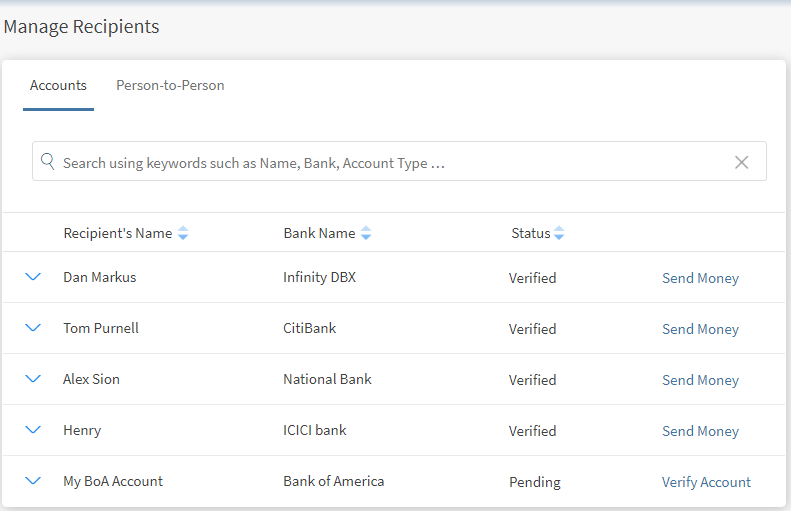
The accounts tab displays the following details:
- Recipient Name
- Bank Name
- Status (Verified or Pending)
- Actions that you can perform on a transaction - Transfer Money
The list is sorted by Transaction Date by default, but you can sort the list based on any of the columns by using the sort  icon (
 denotes sorted by that column).
You can do the following:
- Transfer money to a recipient
- View recipient details
- View previous transfer activity of a recipient
- Modify the details of a recipient
- Delete a recipient
- Search for a recipient
Transfer Money to a Recipient
Use the feature to transfer money to a required recipient from the list.
The app displays the Send Money screen, to specify the required details and initiate a transfer to the recipient.
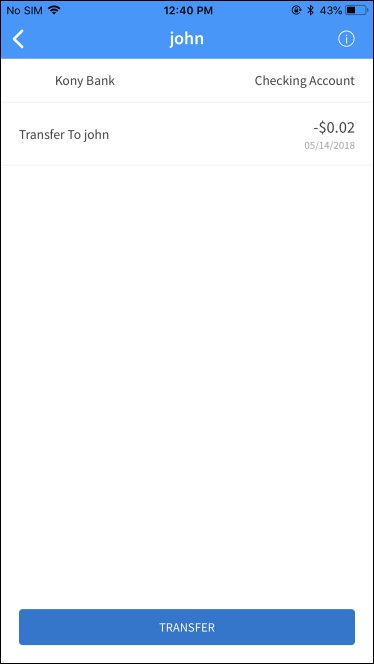
View Recipient Details
Use the feature to view the details of the recipient accounts.
Click the down arrow beside a recipient name to view the recipient details.
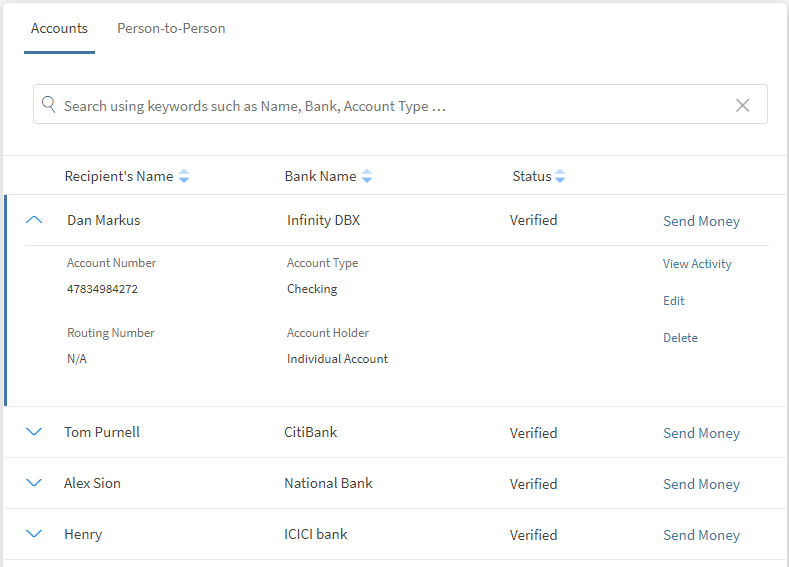
The following details are displayed:
- Account Number. The account number of the selected recipient. The account number is provided while adding the recipient.
- Account Type. Type of the account (such as savings, checking, and so on).
- Routing Number. Bank routing number where the account is opened.
- Account Holder. The person handling the account (such as individual account, joint account, and so on).
You can do the following:
From the recipients list, select the required recipient to view the activity.
The app displays details such as the recipient name, from account, and total amount deducted to date among others.
Navigate back to the recipients screen if required.
View Transfer Activity
Use the feature to view the transactions performed to the recipient account.
Click the down arrow beside a recipient name. The recipient account details are displayed.
Click View Activity. The Transfer Activity details are displayed.
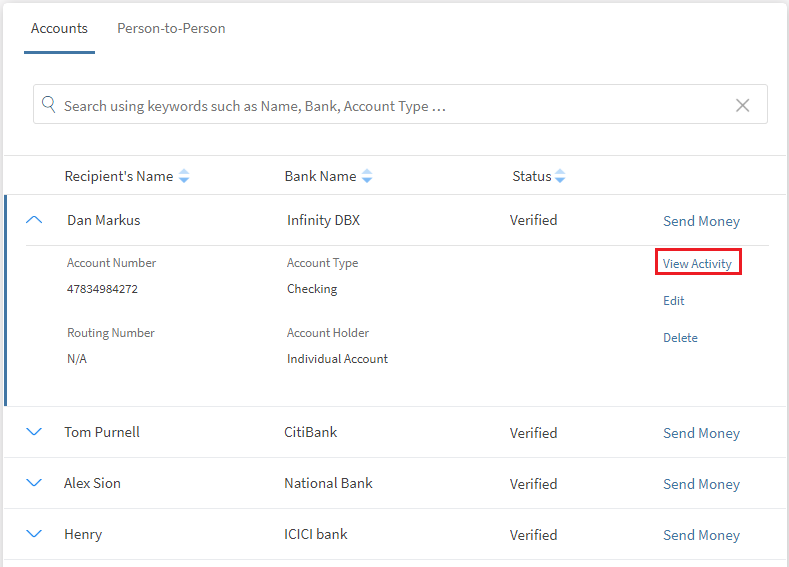
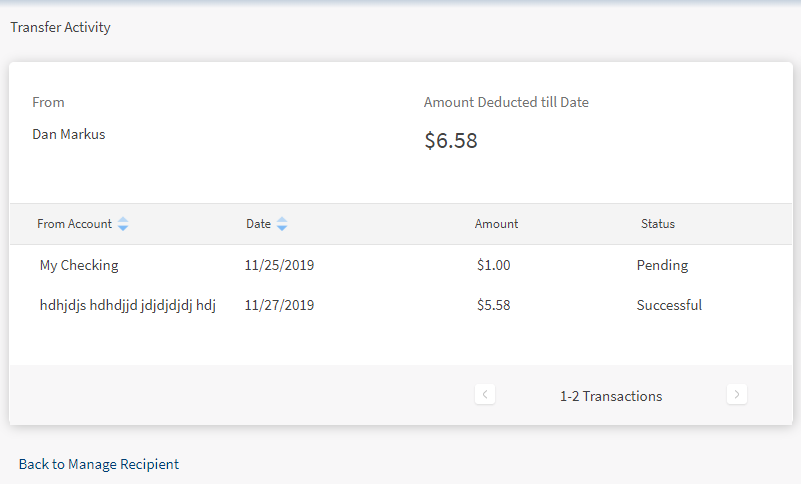
The following details are displayed:
- Number of transactions performed to the selected account
- Amount deducted till date
- Status of the past transactions
Click Back to Manage Recipient to view the recipients list.
Edit Recipient Details
Use the feature to modify the details of the selected recipient.
Click the down arrow beside a recipient name. The recipient account details are displayed.
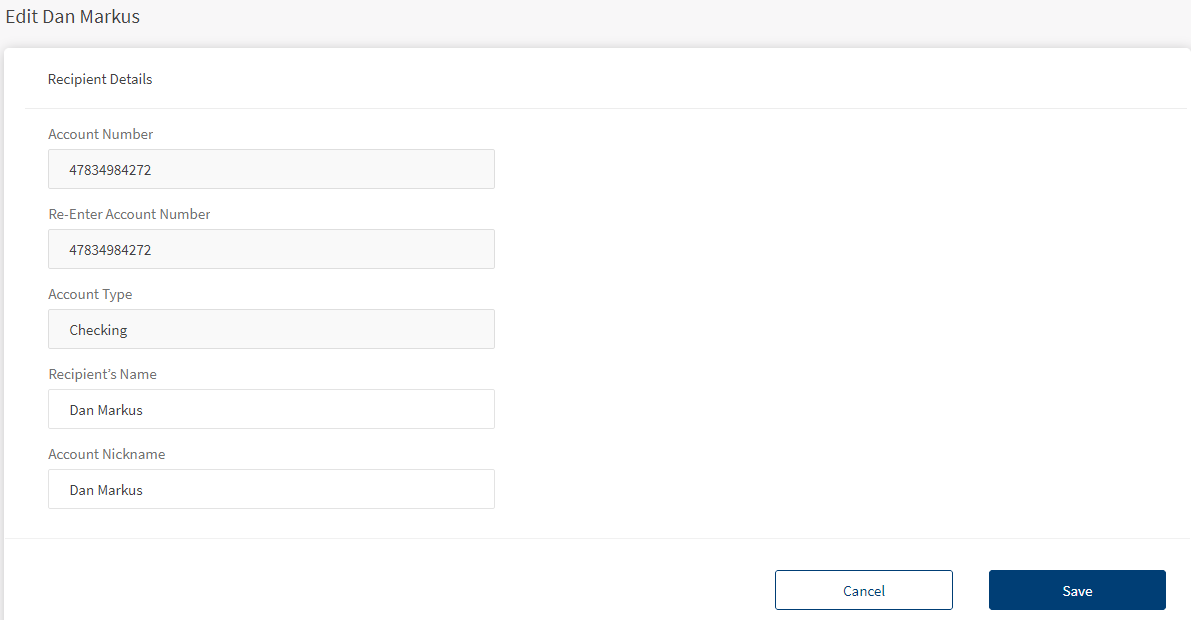
Click Edit to edit the recipient details.
You can modify only the recipient's name and nickname.
NOTE: Make the necessary changes and click Save.
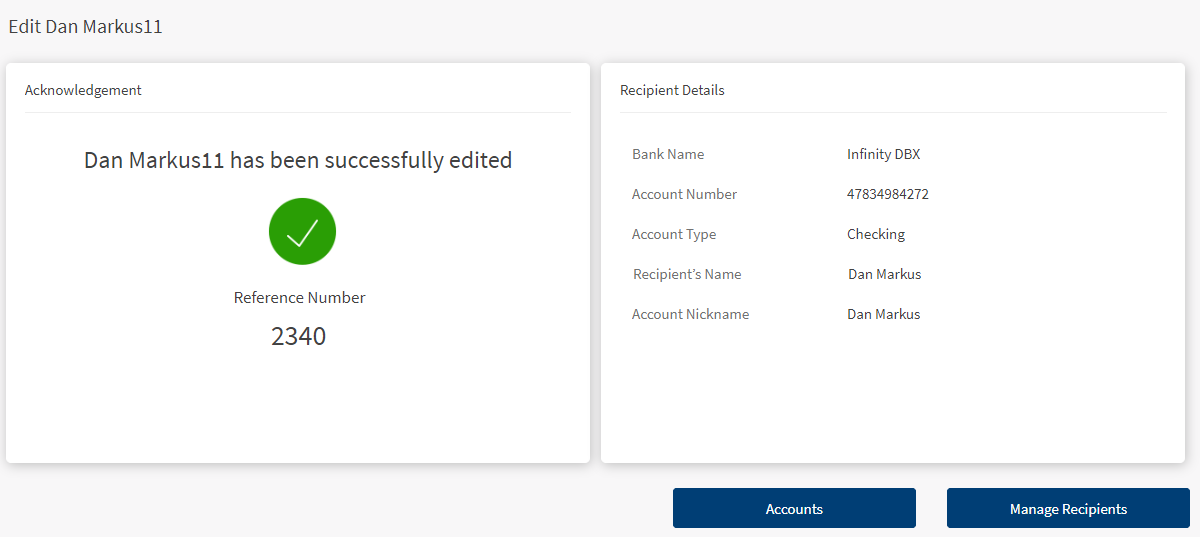
An acknowledgment screen appears. You can do the following in this screen:
- Redirect to Accounts screen
- Redirect to Manage Recipients screen
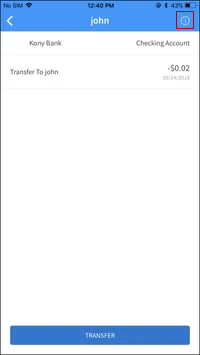
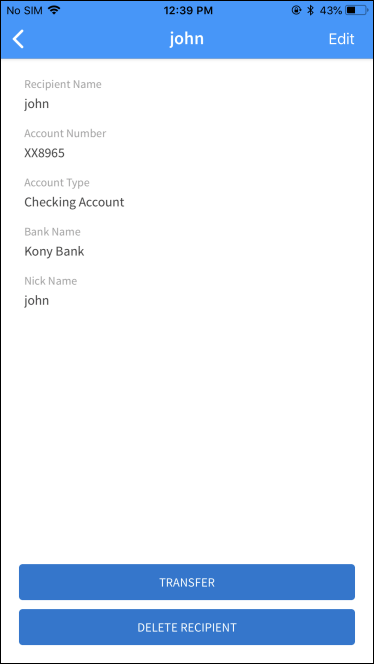
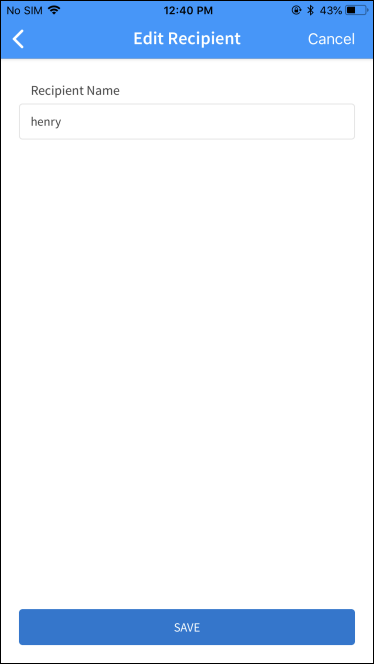
For mobile banking, tap the  information icon to edit the recipient details. The app updates the details of the recipient.
Delete a recipient
Use the feature to delete a recipient.
Click the down arrow beside a recipient name. The recipient account details are displayed.
Click Delete to delete the selected recipient account.
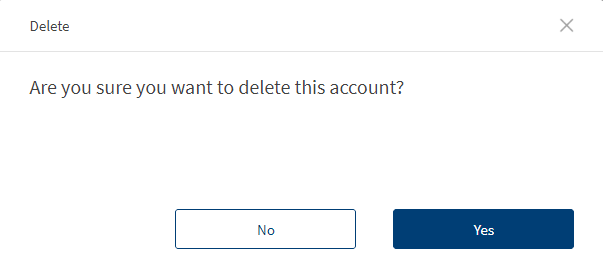
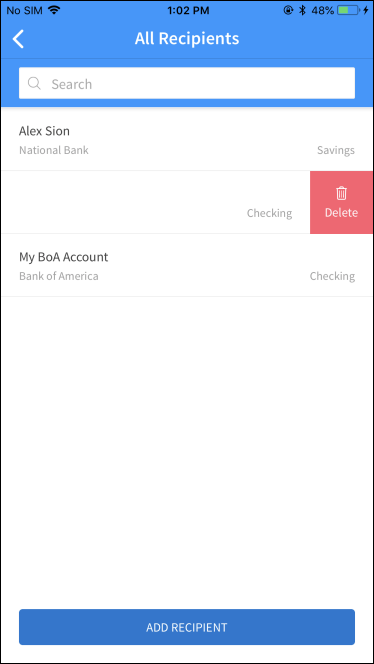
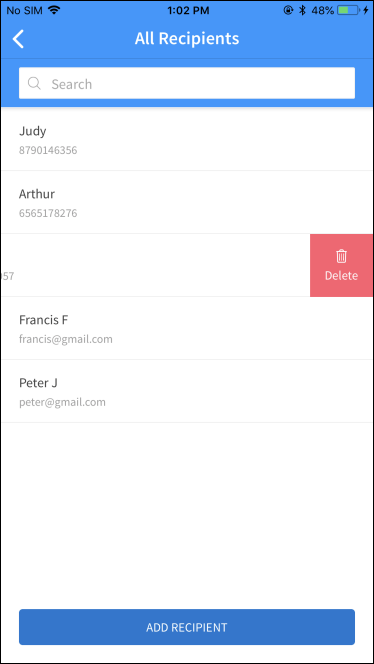
In case of mobile banking, swipe the required recipient from right to left, and delete the record. Alternatively, you can also delete a recipient on the details screen. The app removes the record from the list.
Search for a Recipient
Use the feature to search for the recipients added to the list.
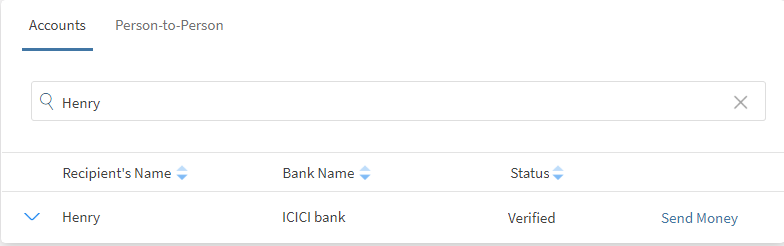
In the recipients list screen, enter a keyword in the search bar such as the recipient name, nickname, bank name, and so on and hit Enter. The recipient matching the provided search criteria is shortlisted and displayed.
Person-to-Person
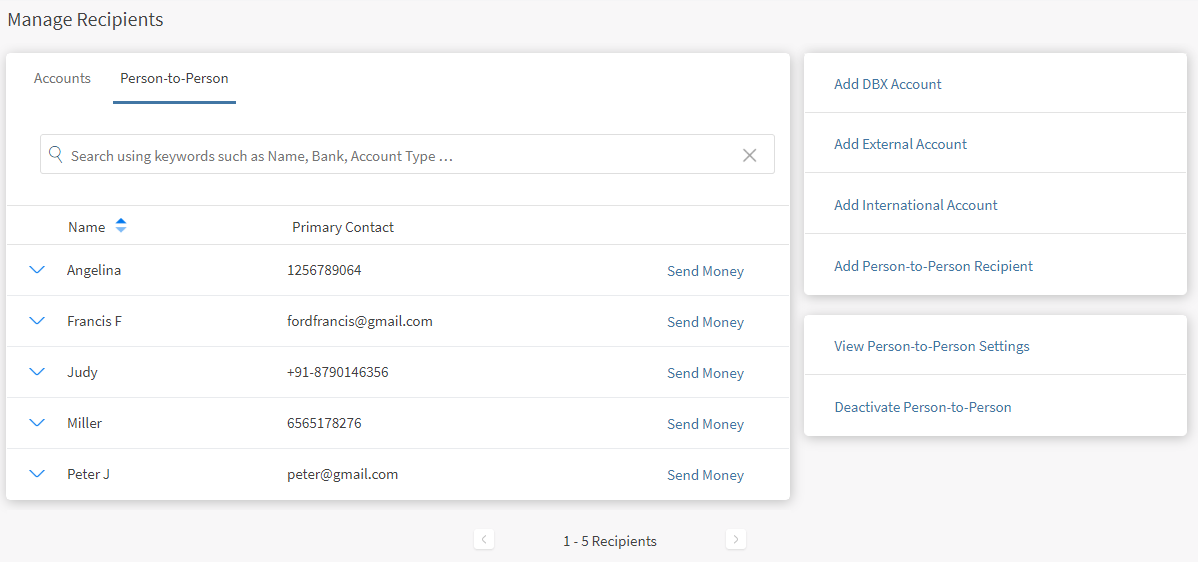
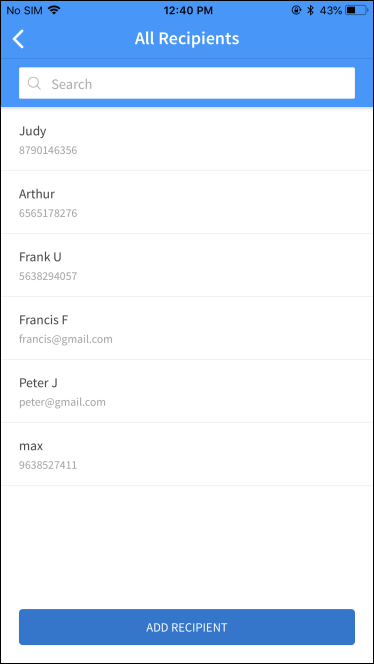
The person-to-person tab is used to manage the list of recipients added using their email ID or mobile number.
Menu path: Online Banking > Transfers > Manage Recipients
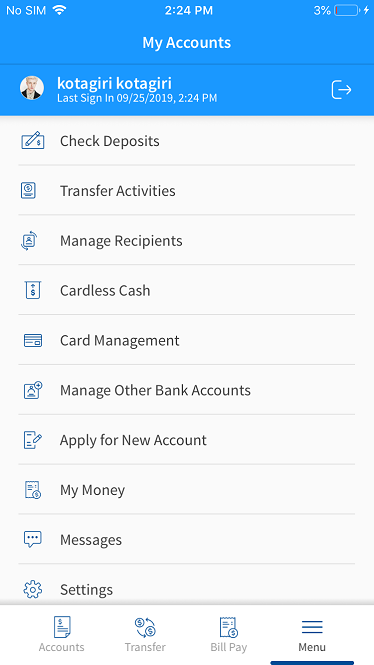
Mobile Banking > Hamburger menu > Manage Recipients
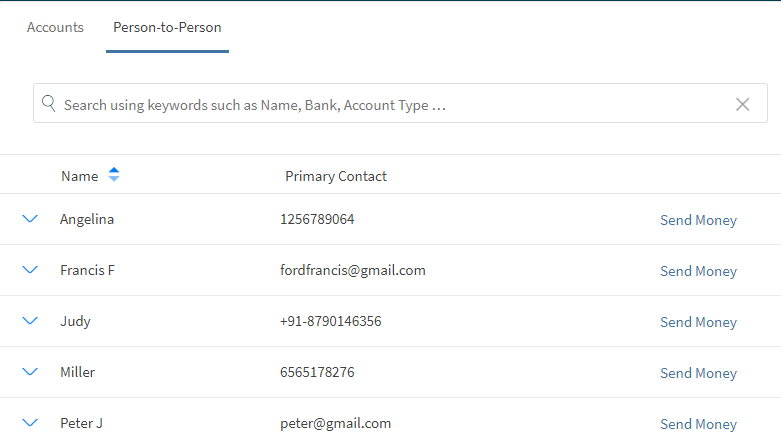
The Person-to-Person tab displays the following details:
- Recipient's Name
- Primary Contact
The list is sorted by Name by default, but you can sort the list by using the sort icon ( denotes sorted by that column).
You can do the following:
- Send Money to a recipient
- View the recipient details
- Edit the recipient details
- View Activity
- Delete a recipient
- Search for a recipient
- View Person-to-Person Settings
- Deactivate Person-to-Person
Send Money
Use the feature to send money to the required recipients from the list.
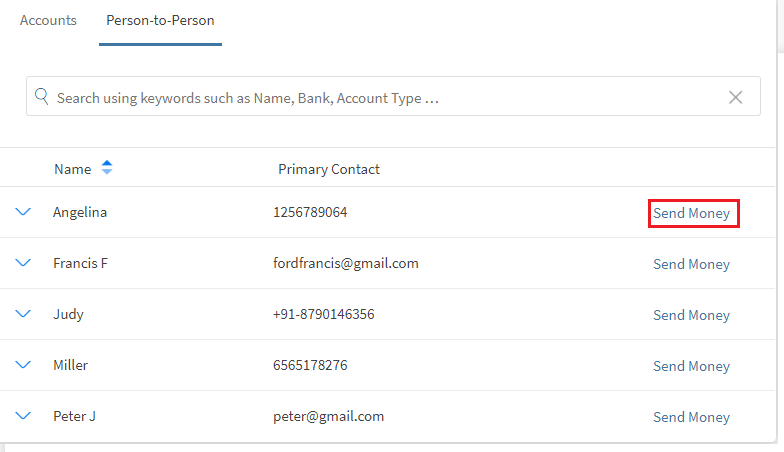
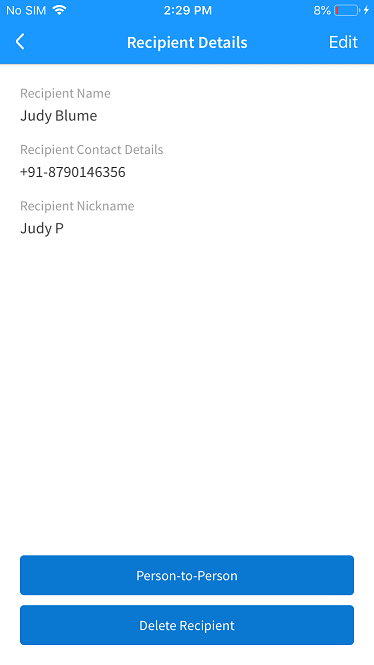
The app displays the Send Money screen with the selected recipient displayed in To account, by default.
View P2P Recipient
Use the feature to view the details of the recipients.
Click the down arrow beside a recipient name to view the recipient details.
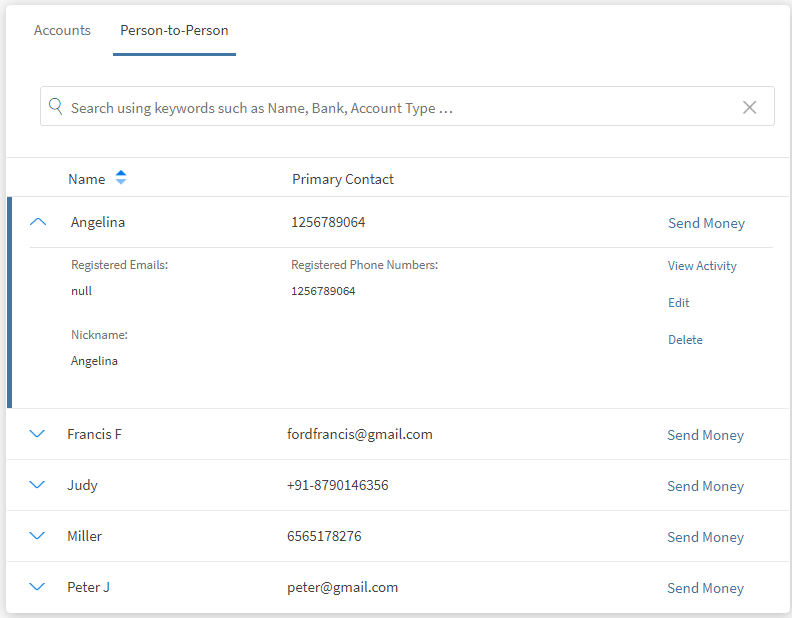
The following details are displayed:
- Registered Email. The email ID of the selected recipient. The email ID is provided while adding the recipient.
- Registered Phone Number. The phone number of the selected recipient. The phone number is provided while adding the recipient.
- Nickname. The nickname of the recipient provided while adding the recipient.
You can do the following:
Edit Recipient Details
Use the feature to view the recipient details and modify them if required.
Click the down arrow beside the recipient name to expand and view the recipient details.
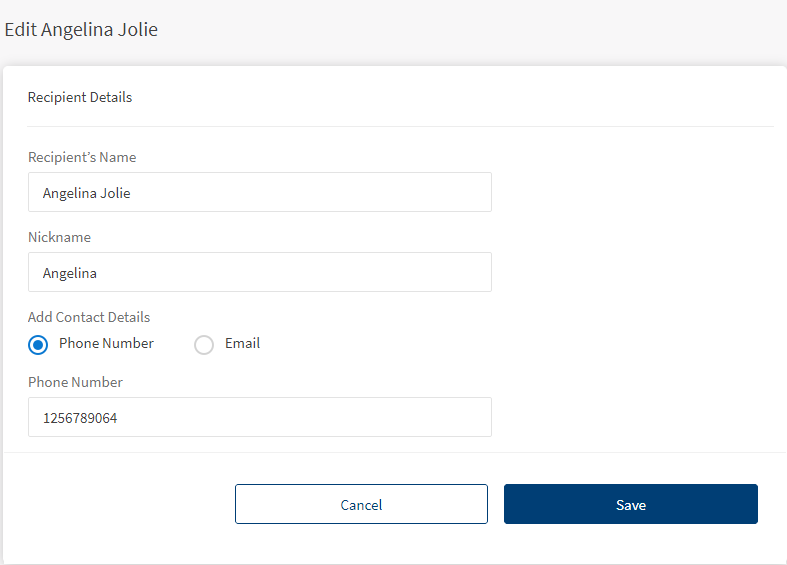
Click Edit to edit the recipient details.
In online banking, you can modify all the fields such as Recipient Name, Nick Name, and Contact details provided (Phone Number or Email Address).
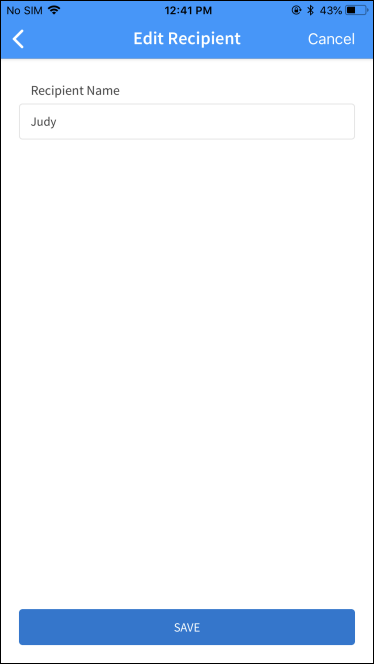
In mobile banking, you can only modify the nickname of the payee.
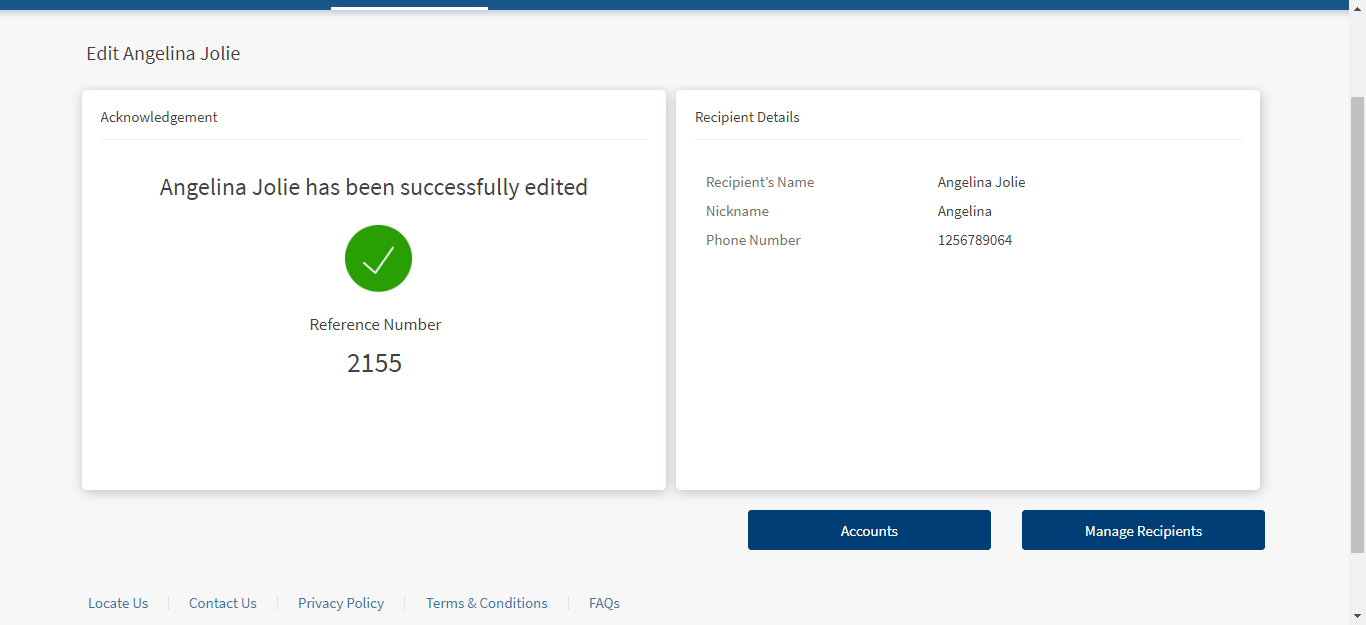
Make the necessary changes in the edit recipient details screen and click save. The app updates the details of the recipient.
An acknowledgment screen is displayed.
Delete P2P Recipient
Use the feature to delete a recipient.
Click the down arrow beside a recipient name. The recipient details are displayed.
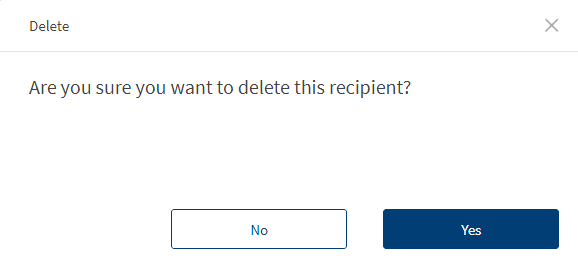
Click Delete to delete the selected recipient.
View Activity
Use the feature to view the previous transaction activity for a recipient. This feature is applicable only for online banking.
From the Manage Recipient screen, click to expand the required recipient and then click View Activity. The app displays the P2P Activity screen.
The following details are displayed:
- Number of transactions performed to the selected recipient
- Amount deducted till date
- Status of the past transactions
Click Back to Manage Recipient to view the recipients list
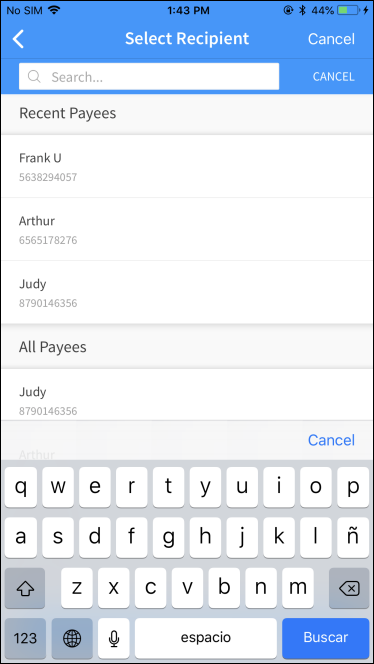
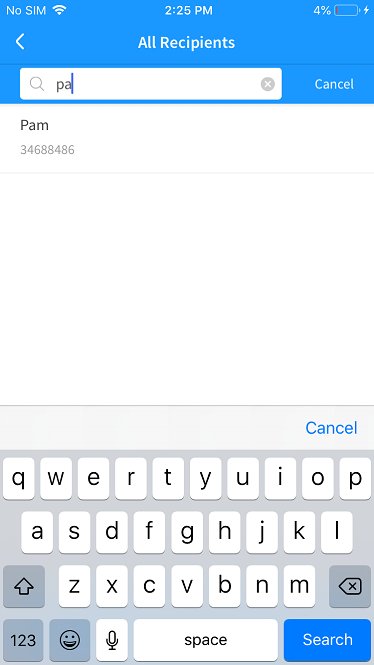
Search P2P Recipient
Use the feature to search for a previously added P2P recipient.
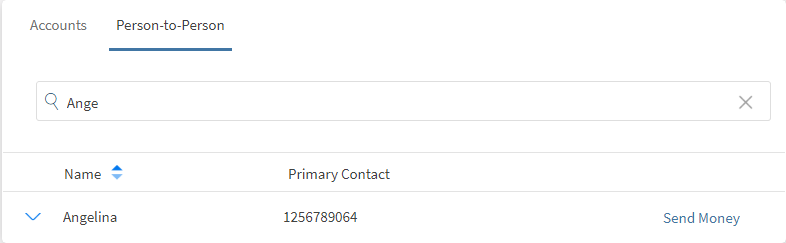
Enter the search criteria in the search field. The app displays the search results with the list of relevant P2P recipients.
Use the X icon to clear the search criterion at any time.
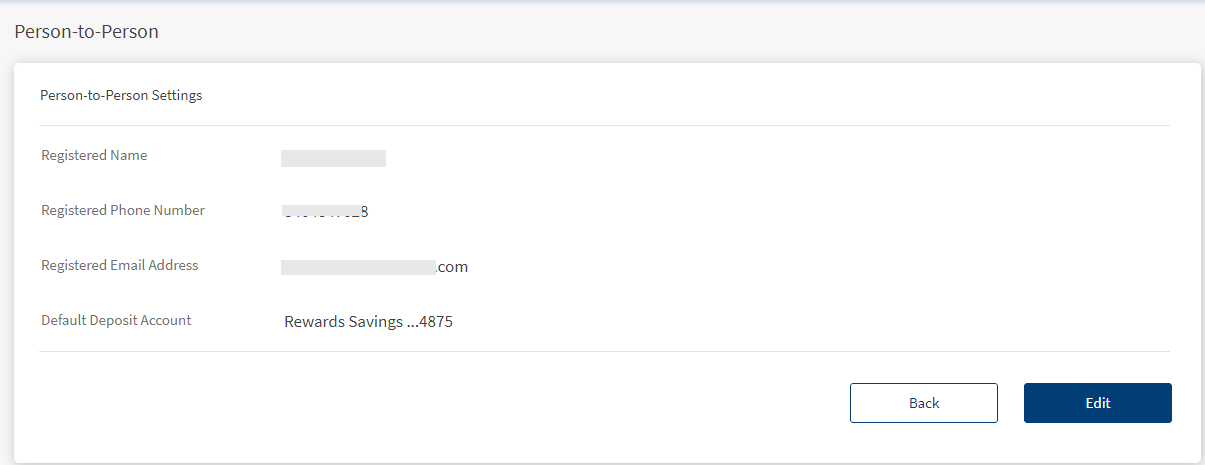
View Person-to-Person Settings
Use the feature to view or edit the pay a person settings.
Click Person-to-Person settings from the right pane of the Manage Recipients screen. Person-to-Person settings screen is displayed.
The following details are displayed:
- Your Name
- Registered Phone Number
- Registered Email
- Default Account used to transfer
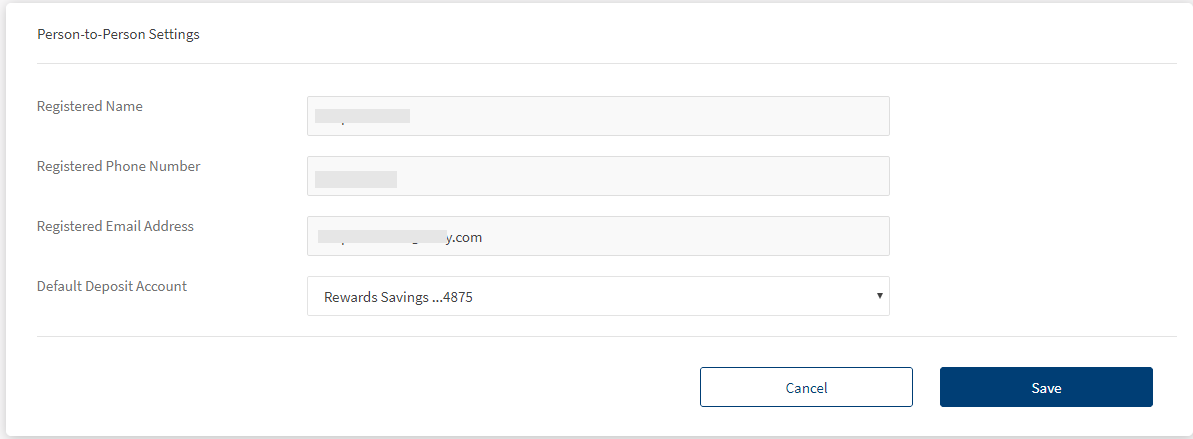
Click Edit to modify the details. Make the necessary changes and click Confirm.
NOTE: Cancel the process at any time. The changes are not saved.
Deactivate Person-to-Person
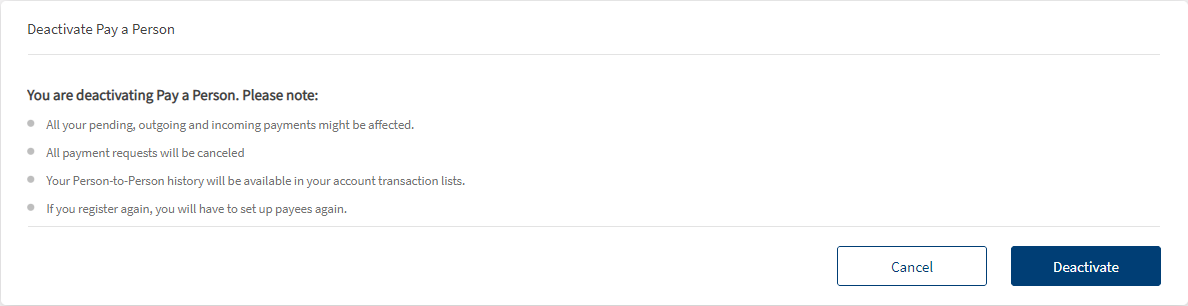
Use the feature to deactivate Person-to-Person feature.
- Click Deactivate Person-to-Person from the right pane of the Manage Recipients screen. The application displays a few instructions before deactivating Person-to-Person.
- Click Continue to proceed further.
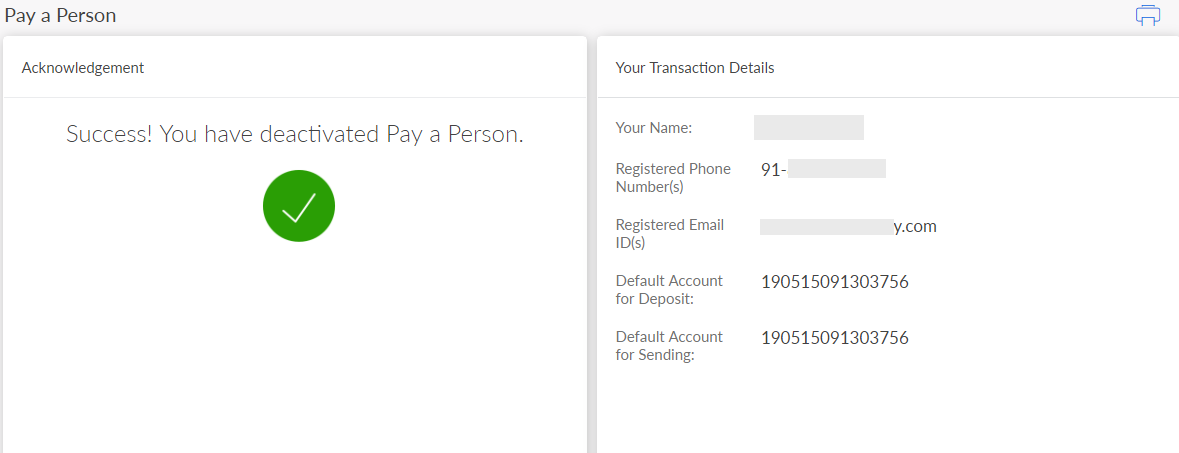
- An acknowledgment screen is displayed that person-to-person is deactivated. Click
 to print the acknowledgment.
In this topic
